

System Requirements
Operating System: macOS 14.0 (Sonoma) or later.
Architecture: Native support for Apple Silicon (M1/M2/M3/M4) and Intel Macs.
Storage: ~20 MB base installation space (additional local storage required for cached cover art and backup archives).
Network: Active internet connection required for initial game search, metadata fetching, and cover art downloading (offline browsing fully supported via local caching).
If you made it this far, you probably want to learn more about SillyGooses™. Well, you’re in the right place, this is where we will go in to depth on what features it has, as well as how to use it. Come climb into this app with us.
SillyGooses: Comprehensive User Manual & Feature Guide
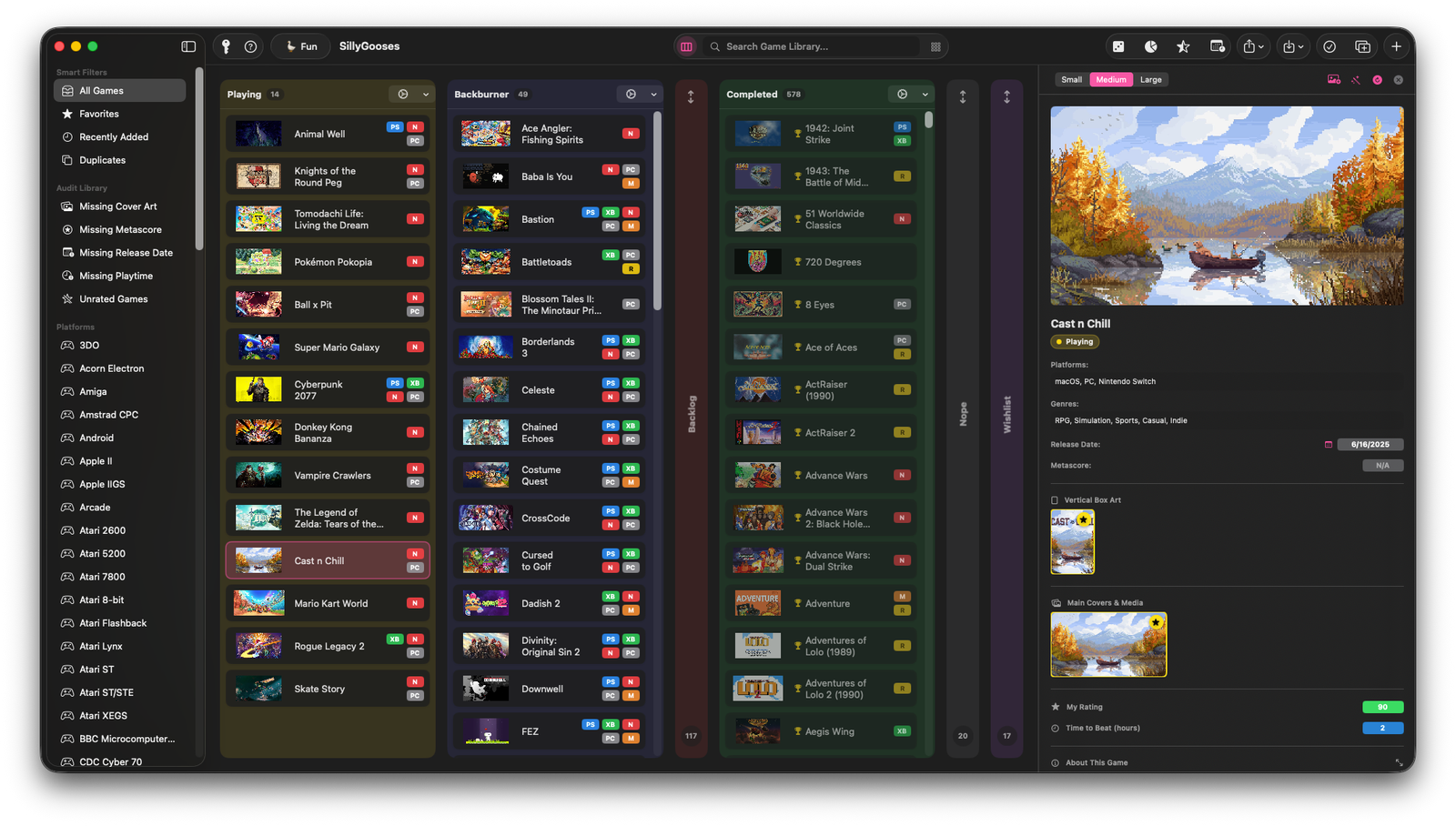
App Interface Overview
The SillyGooses interface is divided into four main functional regions
Top Toolbar: Houses app configuration (API keys, Help, Fun Mode toggle), view mode switchers, global search, analytics tools, import/export menus, and bulk game actions.
Left Sidebar (Navigation Split View): Contains Smart Filters, Library Audit categories, and dynamically populated Platform and Genre filters.
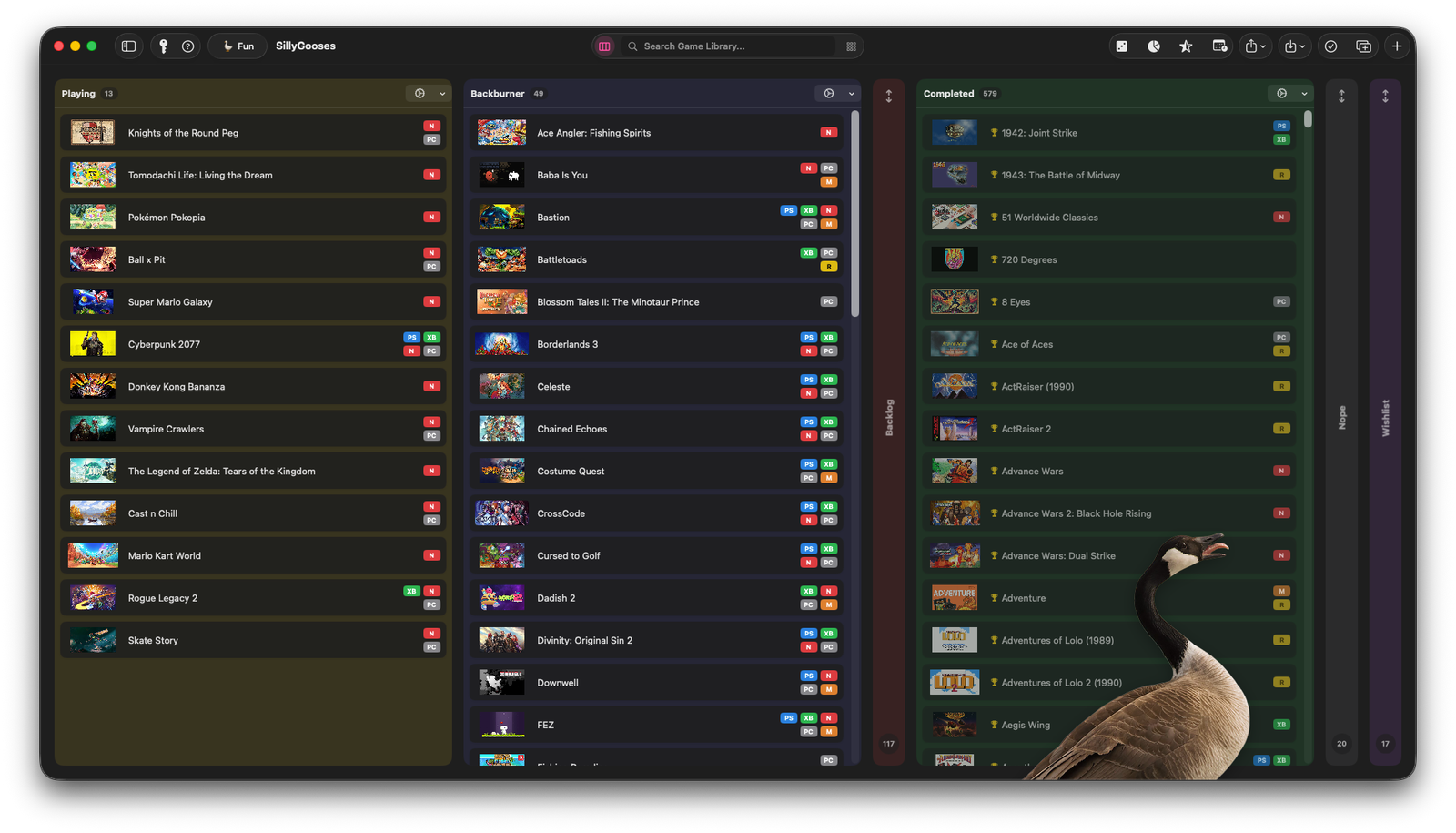
Main Viewport: Displays your game library either as a multi-column Kanban board or a Plex-style Collection poster grid.
Inspector Panel (Details Sheet): Slides in from the right edge when a game is selected, allowing deep metadata editing, rating adjustments, custom image uploads, and notes.
API KEYS
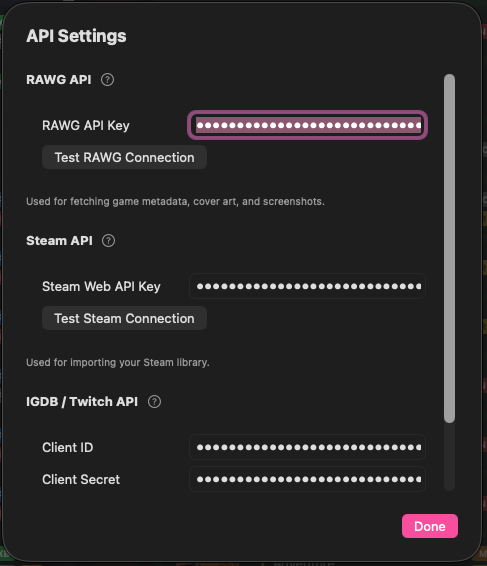
Setting Up API Keys: SillyGooses uses two external services to automatically populate game details, Metacritic scores, HowLongToBeat playtimes, and high-resolution artwork.
Where to Configure API Keys: Click the API Keys button (key icon key.fill) on the far left of the top toolbar.
RAWG API Key (Primary Metadata)
What it does: Searches games, pulls game descriptions, Metacritic scores, release dates, genre tags, platform lists, and default horizontal landscape covers.
How to obtain:
- Go to RAWG.io and create a free account.
- Generate a free API Key under your account settings.
- Paste the key into the RAWG API Key field in SillyGooses API Settings.
IGDB / Twitch Developer Credentials (Vertical Posters)
What it does: Fetches 2:3 vertical box art posters for the Collection Grid, Timeline, and Infographic Exporter.
How to obtain:
- Log into the Twitch Developer Portal.
- Register a new application
- Category: Application
- OAuth Redirect URL: http://localhost
- Copy your Client ID and click New Secret to generate a Client Secret.
- Paste both values into the Twitch Client ID and Twitch Client Secret fields in SillyGooses API Settings.
- Click Save Keys. SillyGooses will automatically handle authentication token generation behind the scenes.
Main View Modes
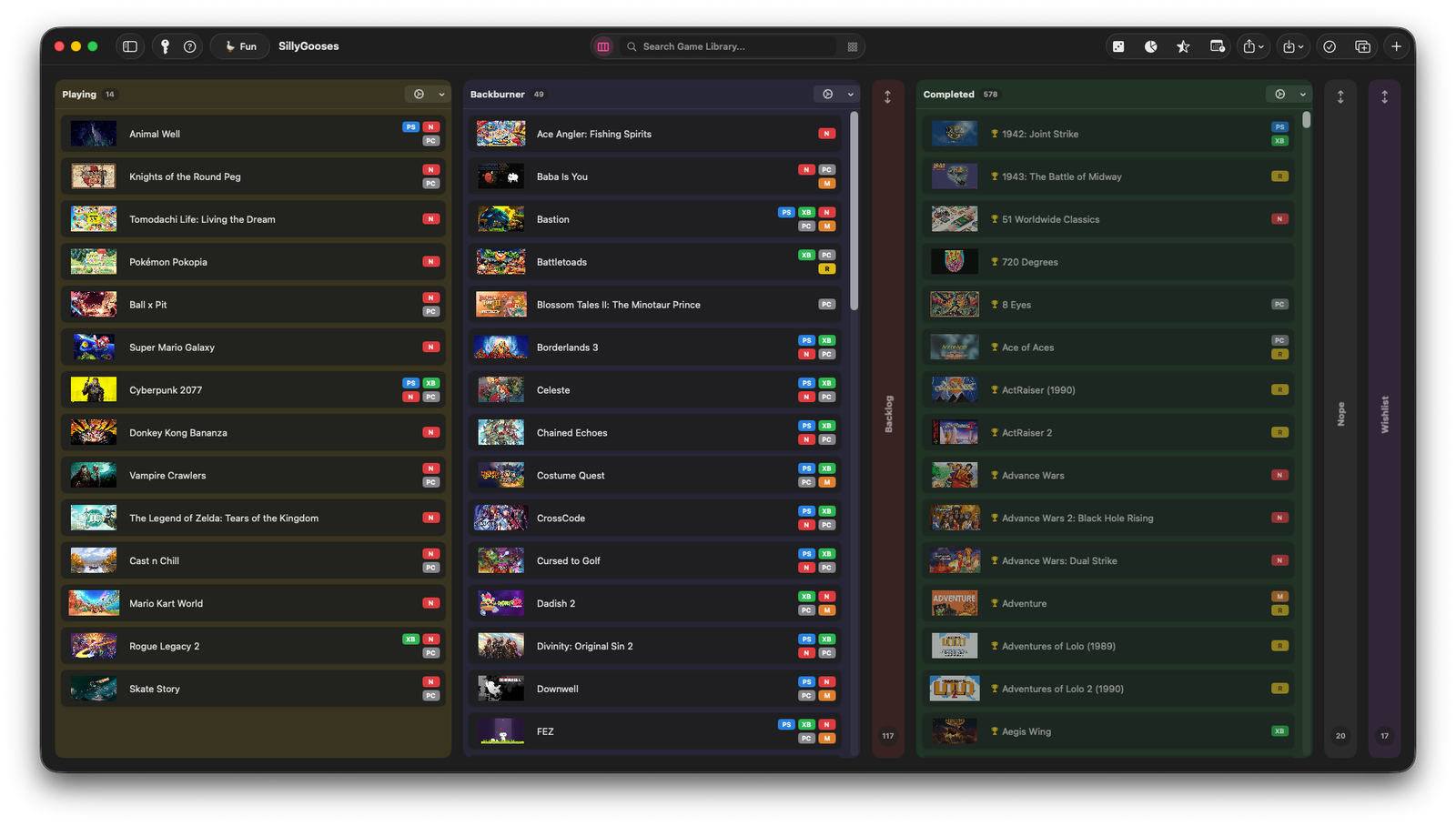
Kanban Board View
Access: Click the 3-Column Board icon (rectangle.split.3×1) in the toolbar center.
How to use
Drag & Drop: Click and hold any game card to drag it between columns (e.g., from Backlog to Playing or Completed).
Collapse Column: Shrinks the column into a vertical tab to save horizontal screen space (games can still be dragged onto collapsed tabs).
Change Sort Order: Sort games inside the column by Manual, Name, Release Date, or Date Added.
Change Color: Open the macOS system color picker to change column accent borders.
Rename / Delete: Modify column titles or remove custom columns.
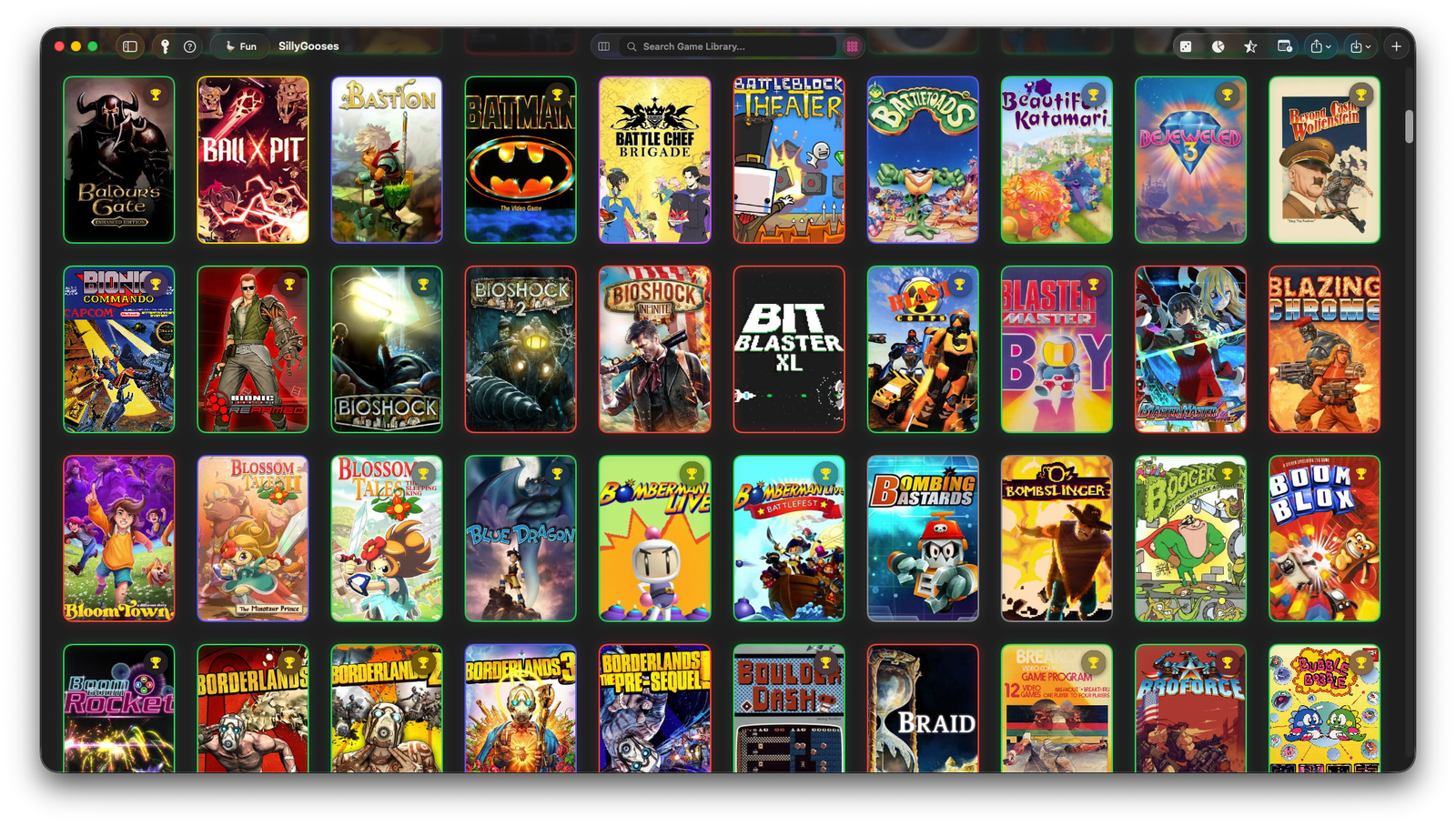
Collection Grid View
Access: Click the Grid icon (square.grid.3×3) in the toolbar center.
How to use
Displays all games in a uniform 2:3 aspect ratio poster grid using vertical artwork.
Pinned Header: Features an Add Game (+) button on the top-right header and a live count of total items in your collection.
Status Rings: Each poster card features a thin color ring corresponding to its parent column’s color. Completed games display a golden trophy badge.
Adding & Managing Games
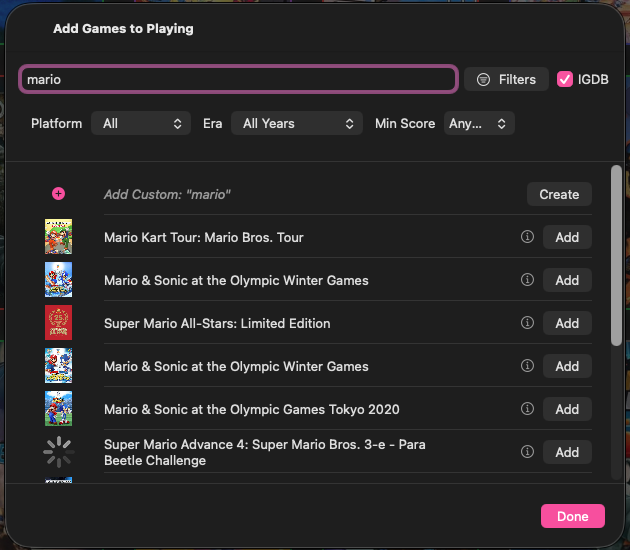
Adding a Game
- Press (⌘ + N) anywhere in the app, click Add Game (+) in the toolbar, or click the (+) button in any column header.
- In the modal that appears, type the title of the game in the search box.
- Hover over the Info (i) icon to preview game metadata before adding.
- Click Add next to the game. SillyGooses™ will fetch metadata, HowLongToBeat playtimes, and covers in the background.
Adding Custom Games: If a game isn’t found in online databases, type the name and click Create Custom Game at the top of the search list.
Using Advanced Search Filters
When searching for games to add or fix matches, click the Filters button next to the search bar inside the modal to expand the filter drawer
Platform Filter: Limit search results to PC, PlayStation, Xbox, or Nintendo.
Era Filter: Filter results by decade (2020s, 2010s, 2000s, 1990s & Older).
Min Metascore: Hide games below a specific critical threshold (70+, 80+, 90+).
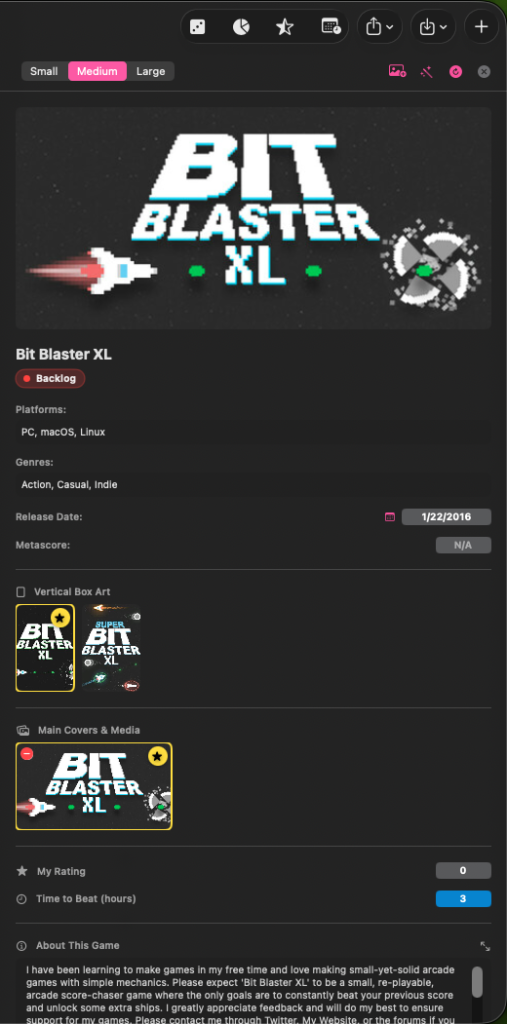
Editing Game Details (Inspector Panel)
Select any game card and press `Spacebar`, or click the game card. The right Inspector panel slides out
Personal Rating: Adjust your rating slider (0–100) or quick-rate via context menu.
Custom Artwork: Drag and drop any image file from macOS Finder directly onto the landscape or vertical poster slots to set custom art.
Fix Match: Click Fix Match if the automated metadata pull assigned the wrong game title or ID.
Notes: Add custom personal notes or playthrough logs.
Multi-Select & Bulk Actions
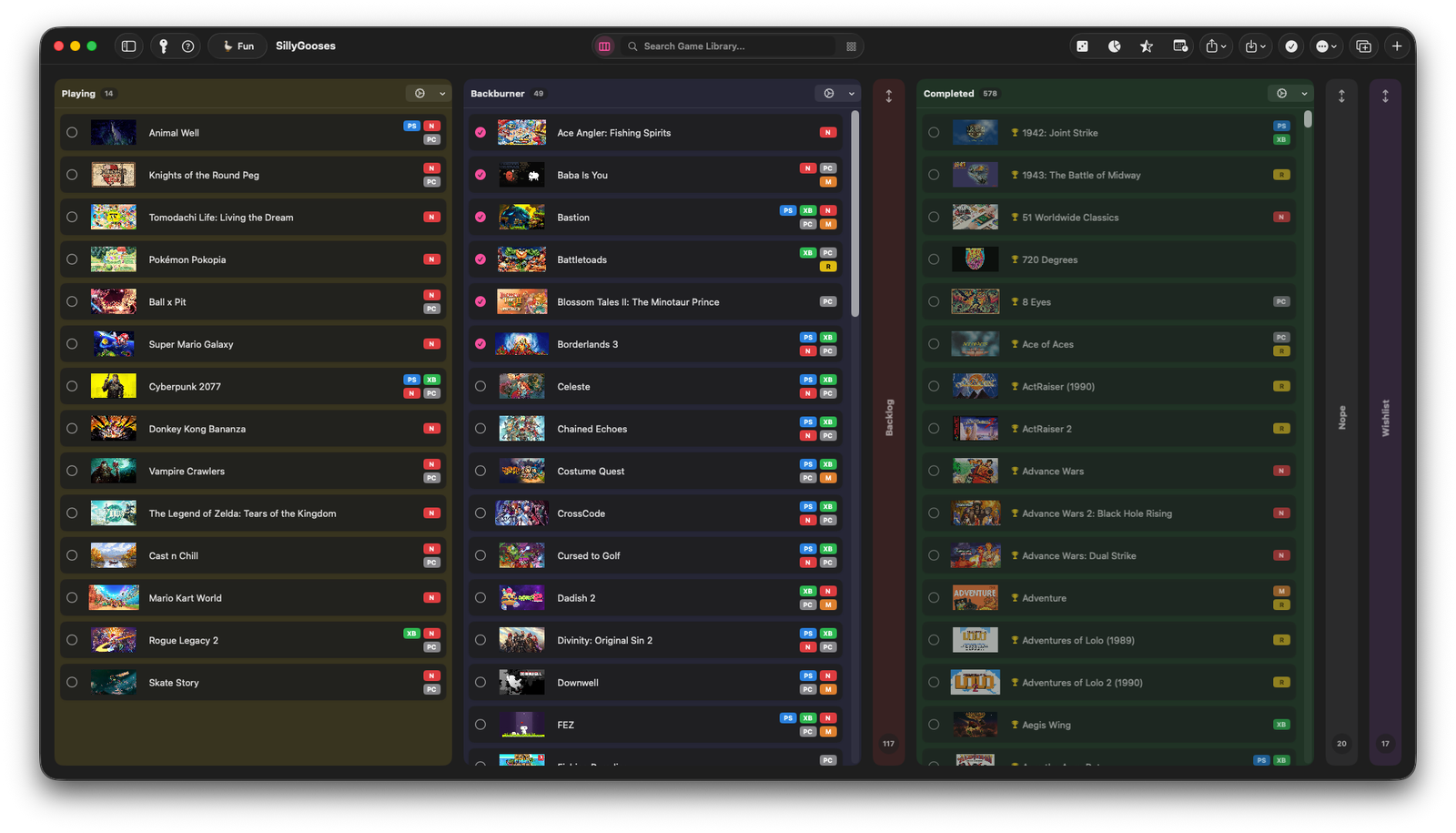
- On the Kanban Board, click Select Games (checkmark.circle) in the toolbar.
- Click multiple game cards to select them.
- Use the Actions dropdown menu to:
- Mass-move selected games to a specific column.
- Batch refresh metadata from APIs.
- Mass-delete selected games.
Importing & Exporting Data
Importing Data
Steam Library Import
Navigate to the top toolbar -> Click Import List menu (square.and.arrow.down) -> Select Import from Steam.
Enter your Steam 64-bit ID (a 17-digit number starting with 7656).
Note: Your Steam profile and game details must be set to “Public” in Steam Privacy Settings.
Click Import. SillyGooses will import your owned games into the Backlog column.
Duplicate Detection: If matching games already exist in your library, an alert will ask if you want to Skip Duplicates or Import All.
CSV / SillyGooses Backup Import
Click Import List -> Select Import Backup/CSV.
Select a .sillybackup archive or a standard .csv file.
Exporting Data
Export Backup Package (.sillybackup)
Click Export List menu (square.and.arrow.up) -> Select Export Backup Package.
Choose a save location. This generates a .sillybackup file containing both your CSV data structure and bundled local custom artwork.
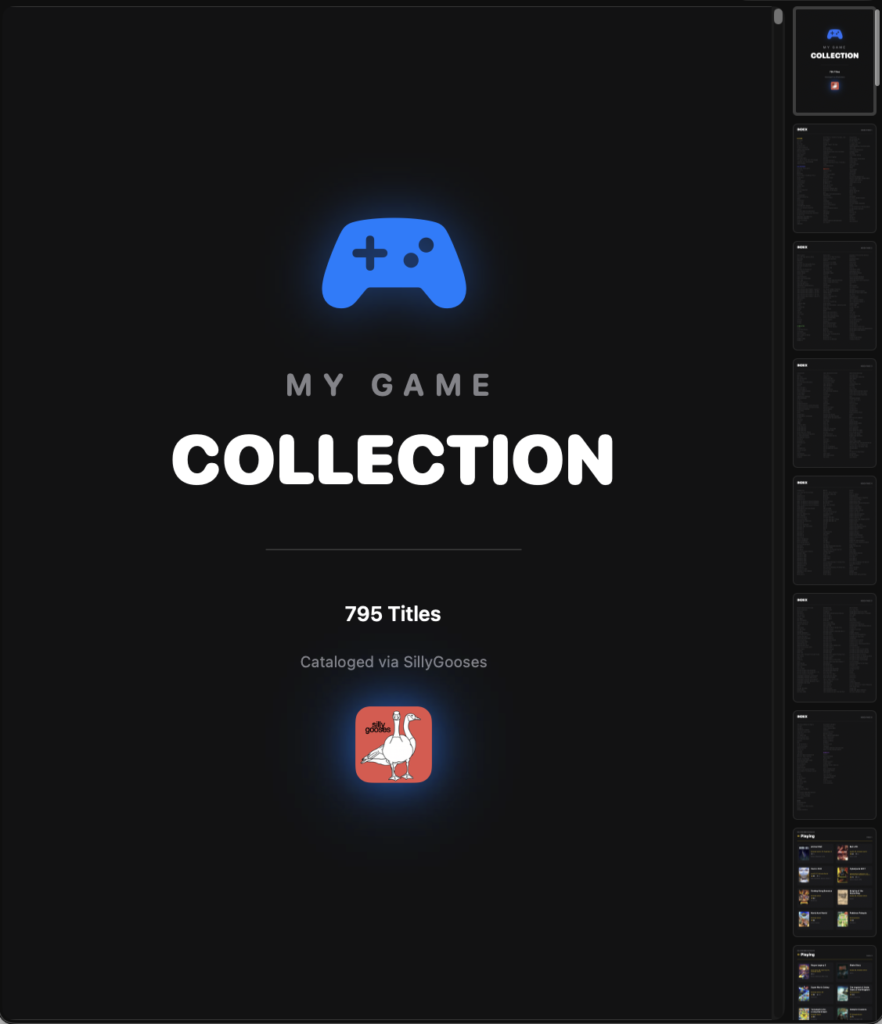
Export Magazine PDF Catalog
Click Export List -> Select Export Magazine PDF.
SillyGooses generates a formatted PDF document arranging your entire collection column-by-column with cover art, ratings, and stats.
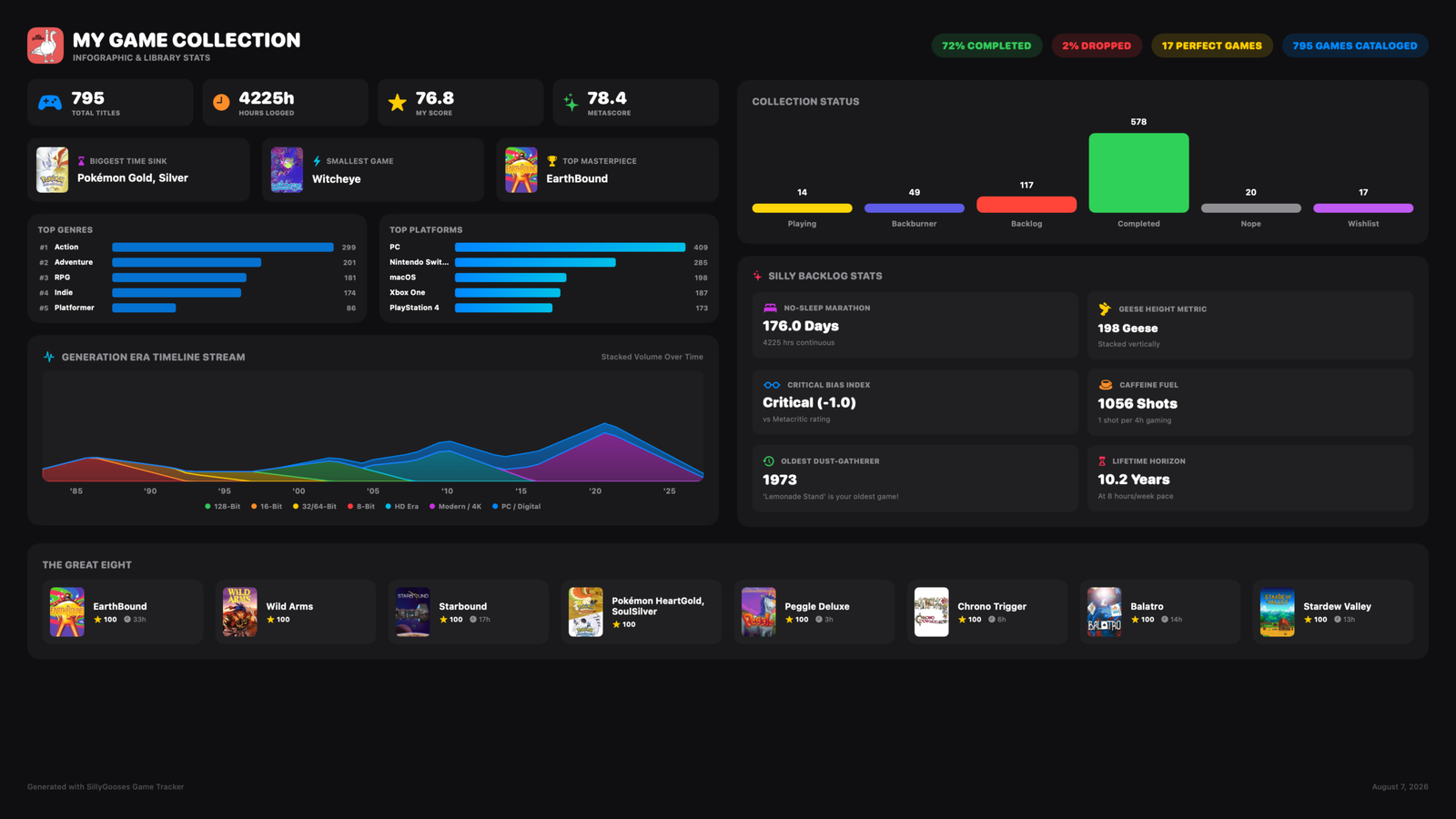
Export Infographic One-Sheet
Click Export List -> Select Export Infographic One Sheet.
Automatically generates a 16:9 high-resolution PNG poster showcasing your top-ranked games, overall statistics, and completion rates suitable for sharing online.
Ranking Your Top Games (Rank 100s List)
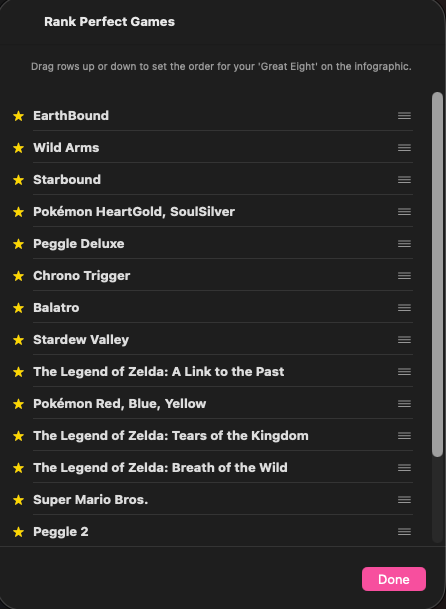
The Rank 100s tool lets you manually order your all-time favorite games. This custom ranking directly feeds into your personal leaderboards and the exported Infographic One-Sheet.
How to Set Up and Reorder Your List
Click the Rank 100s button (half-star icon star.leadinghalf.filled) in the top toolbar.
A reordering window will appear listing all games you have rated.
Drag and Drop: Click and hold the drag handle next to any game to move it up or down in rank.
Click Done when finished. Your custom order is saved instantly across the Top 100 Leaderboards and Infographic Exports.
Backlog Insights & Backlog Roulette
Insights Dashboard
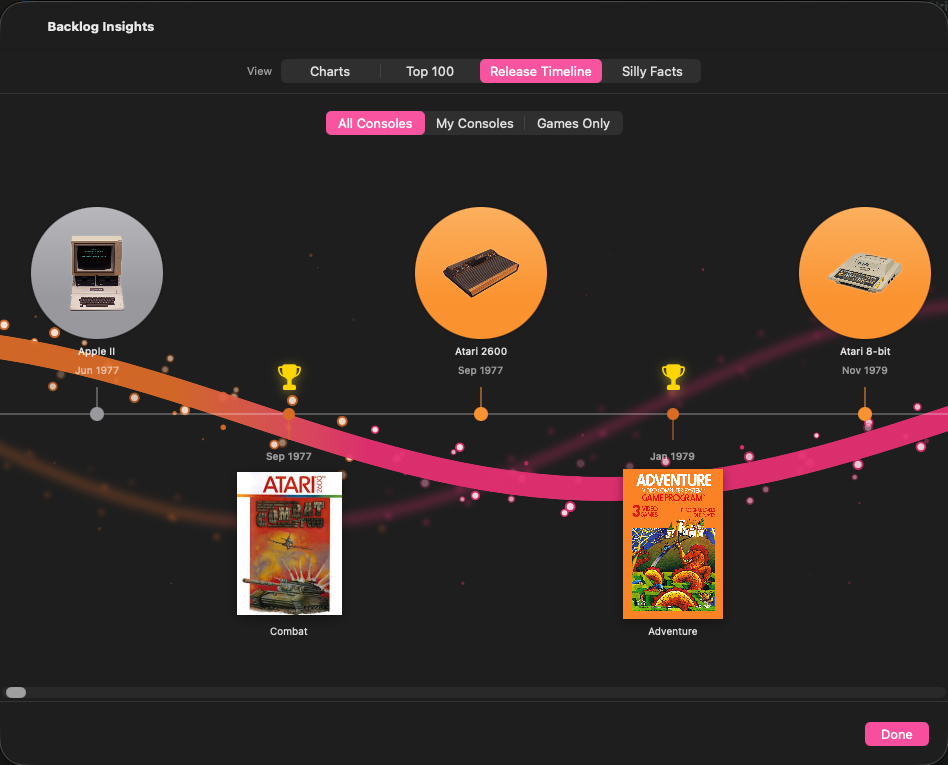
Click Insights (chart.pie.fill) in the top toolbar to access four distinct analytics tabs:
- Charts: Displays board distribution donut charts, platform distribution, personal rating vs. Metacritic score comparison, total time-to-beat hours per list, game length categories, and genre breakdown charts.
- Top 100: Side-by-side leaderboards comparing My Top 100 (your custom-ranked titles) against Metacritic Top 100. Filter lists by platform or completion status.
- Release Timeline: A horizontal scrolling timeline displaying your games placed along an animated PS3-style ribbon wave alongside historical home console release milestones from the 1970s to the 2020s.
- Silly Facts: Fun calculated metrics including
- No-Sleep Marathon: Total continuous days required to clear your backlog.
Critical Bias Index: Calculates whether you are generally more generous or harsh than Metacritic critics.
Caffeine Fuel: Estimates the espresso shots required to beat your collection.
Lifetime Horizon: Estimated years to clear your backlog based on an 8-hour weekly play pace.
- No-Sleep Marathon: Total continuous days required to clear your backlog.
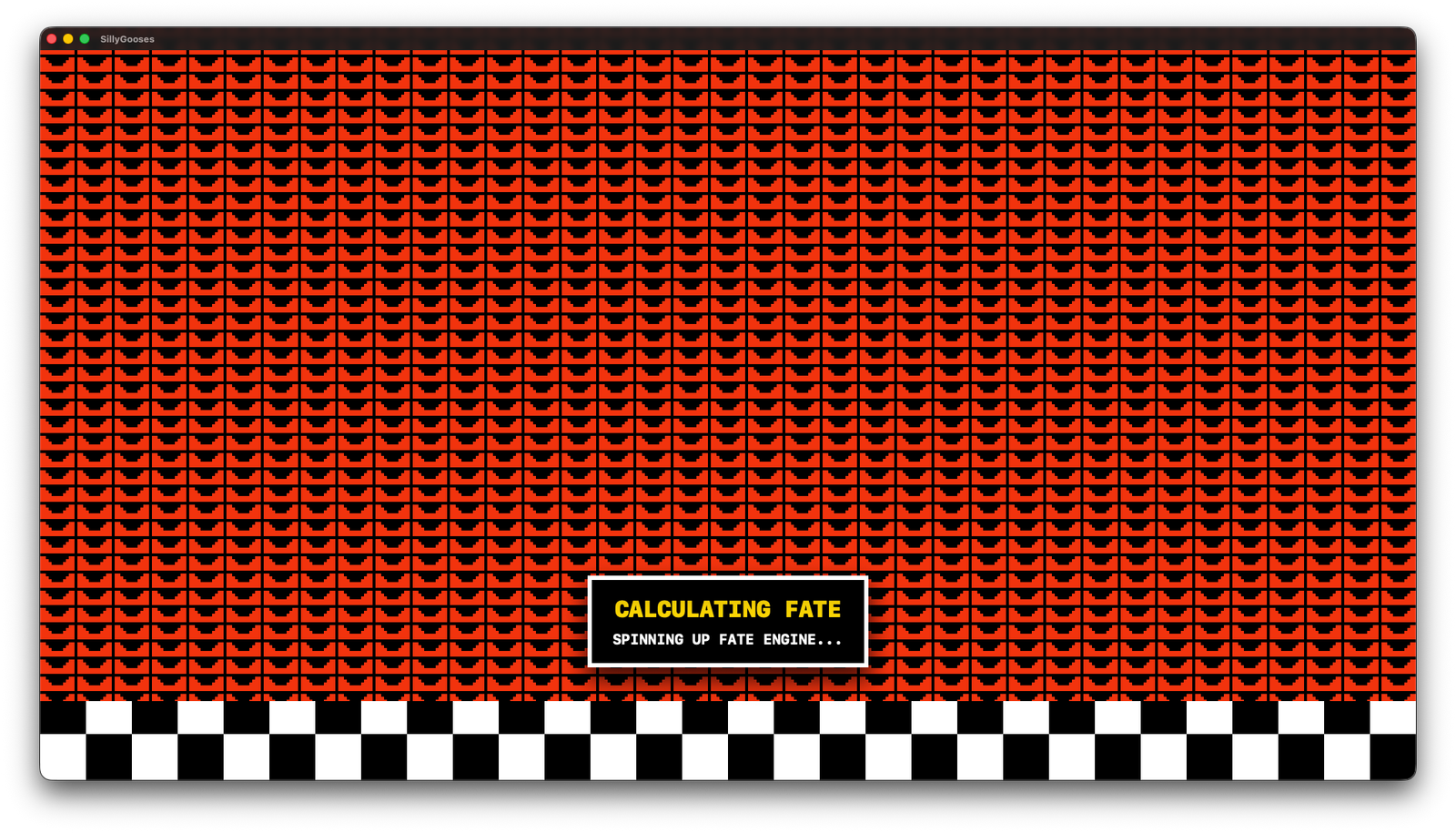
Backlog Roulette (Game Picker)
When decision paralysis strikes…
Click Backlog Roulette (dice icon die.face.3.fill) in the top toolbar.
SillyGooses initiates a full-screen theatrical curtain drop and game-show spinning wheel that randomly selects a game from your backlog.
Click Accept Fate to automatically open the chosen game’s Inspector panel on your board.
Keyboard Shortcuts & Easter Eggs
Global Keyboard Shortcuts

⌘N - Open "Add Game" sheet (targets first column)
Spacebar - Open/close Inspector panel for selected game
ESC - Close Inspector panel or clear game selection
Up / Down Arrows - Navigate card-by-card through games on board

Fun Mode & Easter Eggs

Toggle 🪿 Fun Mode in the top-left toolbar to enable secret app behaviors

Trophy Goose: Dragging any game card into the Completed column triggers a celebration animation featuring the Silly Goose.

Today in History: Displays daily gaming anniversaries and retro release milestones on app startup or via the calendar button (calendar.badge.clock).

Konami Code: Type ↑ ↑ ↓ ↓ ← → ← → B A on your keyboard anywhere in the app to unleash an animated goose flock across your desktop.
HONK!